
Slider Code Enter Here

Trading with Zoxy, welcome to trading with Zoxy offering you uptodae gold hints and tips

Trading with Zoxy

Welcome to Trading with Zoxy offering you up to date Gold Hints and Tips Watch as out soon as I am Going Self hosted and have a new exciting Website in the making

The leveling guide doesn't have any of those stupid fake 'secrets' that will be gone with the next expansion or content patch...

20K Leveling Guide

The guide doesn't have any of those stupid fake 'secrets' that will be gone with the next expansion or content patch... Instead, I walk you step by step through making gold in this game with rock solid, fundamental strategies which will allow you to easily make 300-1000 gold every day while you level. In fact, when the next expansion rolls around, you won't need to buy another WoW gold guide. Yes there will be new items and gear, but the guides I teach you are timeless and that's what makes them so successful with players of all skill levels.

Warcraft Journal is the first magazine dedicated to World of Warcraft

WarCraft Journal

Warcraft Journal is the first magazine dedicated to World of Warcraft. Each month you will get a new magazine full of news, how-to's and in-depth analysis. And you can read it right away from the comfort of your PC or print it if you choose to. It's fully yours and you will have all the World of Warcraft issues collection at one click of a mouse. Once you get access to Warcraft Journal issues, you'll fall in love with the magazine and start counting the days until the next monthly issue arrives. Plus, at any time, you can make suggestions to help us give you the best content possible. Also they offer a Free 30day trial.

Zygor Guides - Hide quoted text -

Zygor Guides

We believe that the difference in quality you will find in our guides over our competitors is better experienced than simply talked about. We also know that many of you would prefer to try the guides out before buying them. That is why we now offer a free 1-13 trial version of our Alliance and Horde guides. This is a fully functional version of our guide and are only limited in regards to the max level you can achieve with them. Our all new In-Game Talent Advisor is also included which will instruct you on where to spend your talent points when you level up.

Showing posts with label TradeSkillMaster. Show all posts

Sunday, 6 February 2011

TSM AH Profession Groups Setup - Easy Mode

TSM  AH Profession Groups - Easy Mode 


I was getting Really Frustrated with This looking at all the Items I could make but didn't know how to make them all into groups really easily . Then The TSM team  added a nifty new button in .


How To use the new Feature

Step 1 

Creating a new Group -

Very  Simply Just as you would create a group instead  create a category I would suggest that this be your crafting profession EG  Enchanting


Step 2 

Open up the Crating settings and press Create Auctioning Groups .


 Step 3 
 This will then PoP up the following screen

Then Select the Category you want to add the item to and also then Select how to add Crafts to Auctioning All in Individual Groups .

In a Category : WE will be using a Category override setting for the items
All In Individual Groups : Each item can be priced as a unique item rather then as a bulk group


Step 4 

Once this has been done you should see the following in your category , As you can see I now have all my Enchanting scrolls as individual groups  .

All we need to do now is setup the Threshold and Fallback Options for them..


Go into the Category  Options set the previous settings as you want then et the Threshold and the  Fall back to % of Crafting , What that does is overrides the who groups to price each item dynamically based on % of crafting costs rather then set prices .

This was taking hours to do but now its really easy and has made my life about 100% easier getting my crafts setup

Zoxy

Saturday, 22 January 2011

TradeSkill Master - Needs You !


Have You Ever wondered what goes into making a addon ? 


Well for a addon of this size there is a massive amount of Work and this is where the TSM team Needs Your Help . 

To help move this addon out of Beta there is a Urgent need for Testers to work with the developers ,testing and Recreating problems that users are coming up across 

Can you Spare 30 minutes a day  to do this ?  

They are also looking for more members to join there Team can you translate Tradeskill Master to a Different language ? Are you a Web Developer or Artist that wants the make the Interface look better ? 

Get in contact with the Tradeskill Mater Team now  - Click here to talk to them Live On IRC 


Help Wanted

IRC Moderators/Helpers

  • Active in our IRC channel
  • Helps out users as much as possible
  • Provides well thought-out answers with accurate information in language understandable to fifth graders (layman's).
  • Can point users to various web resources when applicable.
  • Using a non-web irc client. We recommend XChat WDK.
  • Registered with Q.
  • Don't ask us for it. If you fit these qualifications, we'll notice and upgrade your status.


OFFICIAL Testers - Now accepting!

Help keep our addon to the highest quality possible. Testers tear apart an addon's functions and find bugs and things that don't work well. Your name will be in the credits you will help make our addons awesome!

  • Can devote at least 30 minutes a day to finding and posting bugs
  • Can use a ticket system on our developers site
  • Can be consistent in work, no long periods of unannounced inactivity.
  • Can assist users with basic problems (avoiding false bug reports) on our IRC channel
Official testers are a little different: Idle on IRC, help people out, and report bugs and we will get you some status.


Developers

Qualifications:

  • Able to spend at least 8 hours per week on an assigned (with some flexibility) project.
  • Ample programming background.
    • C++, Java, PhP, or other languages (scripting language experience a plus).
  • Able to be active on an IRC channel frequently

Preferred:

  • Previous WoW addon and/or Lua experience preferred, but not required.
  • Works well with an online-based team with management hierarchy.
  • Familiar with ticket-based feedback and online repository systems.

Artist

We need an artist to make decent work for our website and addons. Work will include various icons, a banner, and an logo plate.
Qualifications

  • Artist should at least be to a college level skill.
  • Portfolio link should be submitted. If we dig the type of art you make, you'll be considered.
  • Themes will be mostly fan-fiction related for the WoW universe but may diverge if appropriate.
  • Various mediums may be accepted.
  • Would be great work to put in a portfolio, plus added exposure (link to your personal website will be included in the credits).
  • We dig dark stuff.


Translators

  • We need every non-english language (of which World of Warcraft is made) accounted for! If you can speak a language to at least a high school level, let us know!
  • We have a very simple interface set up where you can just go down a list and translate simple phrases.
  • Your name will be in the credits!

Tuesday, 18 January 2011

TradeSkill Master - Dealfinder Flipping Automation

One Way of using Deal finder is to find Cheap item and to resell them and by combing all of the functionally of Tradeskill Master.

Here are the Steps to do this :

Step 1- The Buying 

Go to The Auction House and open The TradeSkills Master window  the bottom Button is the Dealfinder

I am going To use Volatile Fire as the Example , Drag the volatile ( or left Shift Click it ) into the Add item box .

Then Set the price that you want to be buying under I am Setting my Price At 17g ( This is Server dependant ).

Then Hit the Add item Button and You are Ready to go .

 Now Press the Run Dealfinder Scan - this will search the AH for all the item that appear in your list and are below the Value you have set.

Then Press the Buy button an buy as many that are under your Value . It will also Display number available and % below maximum price .

Stage 2 Setting it up to resell  

 Go to the main TSM Settings Page and select the Coin icon to open your auctioning Groups .

Then Go to Categories/groups and Then To the Create Category/Group Tab .Then add in the name for your new group and select Okay .


For General Setting if really depends on the Item but for Volatile Fire i have set my Post cap at 20 and the Post time to 24 hours .


Now to set your resale price  I have selected 18g as the lowest price( Threshold) that I will sell for and 25g as my fall-back so if there are no others on AH then it will be listed at 25g or if another seller has posted it below our threshold it will post for 25g


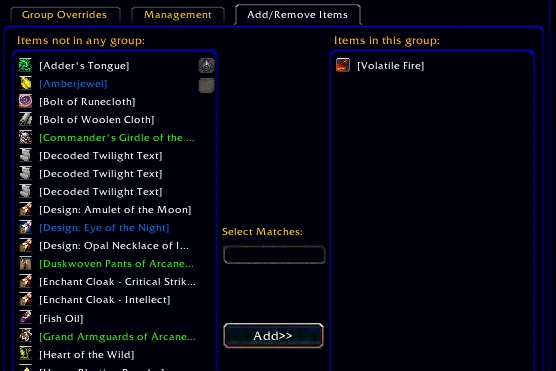
Now go to the Add/remove item tab and seleclet Volatile Fire and then click add .


Finally go back to the AH and Select the top button in the Tradeskill Master tab and it will post the item.


Then Just repeat this for as many items as you want

Zoxy


If you want to Read a different section or go back to the Guide Directory Click on the Links Below

Section 1 Auctioning module
Section 2 The Crafting Module
Section 3 Auto Mail module
Tips and Tricks for Using TSM 

Monday, 17 January 2011

TradeSkillMaster - Addon Guide Compilation


What Is Trade Skill Master ? 

TradeSkillMaster is a MODULE BASED system to help both NEW Auctioneers and the MOST ELITE AUCTION GOBLINS manage everything related to the Auction House! Our goal is to work hand-in-hand with our community to develop an all-inclusive suite of modules that, when used together, follows our users through every single auction and crafting related function, making them as much gold in as automated of an environment as possible while still following blizz Terms of Service very closely.

Here is my guide for How to set up and use TSM , it is currently in Beta so there maybe a couple of bugs


Section 1 Auctioning module
- Setting up Groups
- AH Posting ,Cancelling and Shopping


Section 2 The Crafting Module
- General Settings
- Crafting Settings
- The Craft Queue
- Profession Group Setup Easy mode 

Section 3 Auto Mail module
- Auto Mail

Tips and Tricks for Using TSM 
Dealfinder Flipping Automation

Other Useful Links 
Trade Skill Master FAQ 
Bug Reporting  Click Here 
Curse Download location

Other Blog Posts
TSM First impressions  - Auction House Raids

Have I missed out a Guide or Is there something you want to Know about ?

Zoxy

TradeSkillMaster - Guide Module 1 Auctioning - Buying At the AH

Welcome to Part 2 of the TSM guide

I will now Explain which each of the buttons do
-Auctioning Post
-Auctioning Cancel
-Auctioning Cancel All
-Auctioning Status/config
-AuctionDB Run Scan
-Shopping General Buying
-Shopping Milling/Disenchanting.Prospecting
-Shopping Crafting Mats!
-Shopping Dealfinder


Auctioning Post :
This is the Main button that you will be using to sell items in your groups that have been set up previously.

Before the item goes live it will display the information Displayed in the image , at this stage you can choose to Post Auction ,Skip Item or Stop Posting .


Auctioning Cancel :
When this button is pressed it does a scan of the AH and will then produce a list of all the items that you have been under cut on .

It will then give you the option to cancel Auction Skip Item or Stop Cancelling 


Auctioning Cancel All :
Cancel all give you the option to cancel  Actions in Bulk Based on a couple of different Factors

Items matching : For example you could type 'Glyph of ' and it would select all Glyphs to canceled .


Cancel All Filter :You can filter by a Specific grup or By time left by typing into the Box. IT would then select all items with that Criteria to be cancelled.


Auctioning Status/config
This runs a scan that Helps to Identify what items can be brought out to raise the price of he the groups you are managing . To access this once the scan has completed a Log Button will appear next to the TSM button click that and that is where the information will be .

The Config Button will take you to the Group Config page


AuctionDB Run Scan


There are two option here the first is the Get All Scan and the second is a smaller scan just focusing on professions.

The Get all will scan all items on the AH when the Profession Scan will just can the Trade goods and items made by and needed for that profession


Shopping General Buying :
This is simply a search of the AH , the item must be spelled exact or it wont be found. You are able to input the number you want and also the maximum price

This will then produce the Result of the lowest priced item that you have searched for


Shopping Milling/Disenchanting.Prospecting

In this Tab it allows you to search for items such as Herbs to mill , Items to DE and also and gems to Cut .

So for Milling as the example , You choose form the drop down and then it will Search all the Herbs in that produce it and then Give you the option to buy them .
It will also Record the amount of inks you have brought and the Average cost per ink.


Shopping Crafting Mats!
This is designed to work with the Crafting Queue Which i will go into Further detail in the next module


From the list produced from the items you have queued in TSM Crafting module this will individually go through each item and select the cheapest on  the AH for you .

You have the options to Buy and Skip each item .


Shopping Dealfinder
This is the Snatch List - This allows you to setup a list of items that you want to quickly scan for .The Dealfinder allows you to set the mexium price when you add the item into the Deal finder .

Adding a item into Dealfinder _
Select the Configure Dealfinder List .You can then Add the item by either the Shift Clicking on a item or adding the item numberID ( this can be found on wow head)

When you have added the Item you then need to set the maximum price for the item . Then Select Add item and it will be added to the List .

Next run the DealFinder Scan and see what appears ,It will scan the Items in the AH window next to it so make sure you have it on browse so you can see what it is scanning .

Hope that makes it Clear on how to use the AH Functions of TSM
Let em know if you have any questions

Zoxy


If you want to Read a different section or go back to the Guide Directory Click on the Links Below

Section 1 Auctioning module
Section 2 The Crafting Module
Section 3 Auto Mail module
Tips and Tricks for Using TSM 

TradeSkillMaster - Guide Module 1 Setting up the Groups

 Welcome to the First Part of the Guide to TradeSkillMaster - Auctioning Setting up groups for Sale

TSM Auctioning Function for Setting up Groups is Pretty much the same as APM , if you are currently using APM then when you log in with TSM installed you will get the Below message .


Setting up a Group The Initial Step 


Before you can sell a item it needs to be placed into a group in Tradeskill Master to do this .
-Click on the Coin Button 
-Then Select Categories/groups 

Once you have selected Categories/groups you will see the above Screen shot , then just Create the Name for for Group in the Add group box and Click the okay Button then follow the steps below to set them up. 


Step 1 General Settings : 
I normally leave these as they are set to ignore Auctions with more then 1000 items listed and to ignore the lowest if the price difference is more then 1000% . So leave these at there normal Settings.


Step 2 Post Settings : I change the time for all my auctions to 24hrs: Also choose your post cap depending on the item your selling customise this .

Per auction - Stack Size if your selling mats then Set the size of stack you want to be selling.

Step 3 General Price Settings - Undercut buy is set at 1c as standard and I see no reason to change it .
Bid Percent - This will allow you to change the Bid prices of your auction for when you list them


Step 4 Minimum Price threshold :This sets up the price that you will stop listing the items at .


 Step 5 Maximum Price : This is the fallback setting .Meaning If  there are no other items on the ah then this is the price it will post at .


Step 6 Advanced Price Setting : This is when you can choose to have your item posted at the Fallback , not at all at a custom value or at your threshold. I always set mine at the Fallback


To add items to a group just select the Add/Remove tab and then click on the item


Zoxy


If you want to Read a different section or go back to the Guide Directory Click on the Links Below

Section 1 Auctioning module

Section 2 The Crafting Module
Section 3 Auto Mail module
Tips and Tricks for Using TSM