Slider Code Enter Here

Trading with Zoxy, welcome to trading with Zoxy offering you uptodae gold hints and tips

Trading with Zoxy

Welcome to Trading with Zoxy offering you up to date Gold Hints and Tips Watch as out soon as I am Going Self hosted and have a new exciting Website in the making

The leveling guide doesn't have any of those stupid fake 'secrets' that will be gone with the next expansion or content patch...

20K Leveling Guide

The guide doesn't have any of those stupid fake 'secrets' that will be gone with the next expansion or content patch... Instead, I walk you step by step through making gold in this game with rock solid, fundamental strategies which will allow you to easily make 300-1000 gold every day while you level. In fact, when the next expansion rolls around, you won't need to buy another WoW gold guide. Yes there will be new items and gear, but the guides I teach you are timeless and that's what makes them so successful with players of all skill levels.

Warcraft Journal is the first magazine dedicated to World of Warcraft

WarCraft Journal

Warcraft Journal is the first magazine dedicated to World of Warcraft. Each month you will get a new magazine full of news, how-to's and in-depth analysis. And you can read it right away from the comfort of your PC or print it if you choose to. It's fully yours and you will have all the World of Warcraft issues collection at one click of a mouse. Once you get access to Warcraft Journal issues, you'll fall in love with the magazine and start counting the days until the next monthly issue arrives. Plus, at any time, you can make suggestions to help us give you the best content possible. Also they offer a Free 30day trial.

Zygor Guides - Hide quoted text -

Zygor Guides

We believe that the difference in quality you will find in our guides over our competitors is better experienced than simply talked about. We also know that many of you would prefer to try the guides out before buying them. That is why we now offer a free 1-13 trial version of our Alliance and Horde guides. This is a fully functional version of our guide and are only limited in regards to the max level you can achieve with them. Our all new In-Game Talent Advisor is also included which will instruct you on where to spend your talent points when you level up.

Wednesday, 19 January 2011

URGENT - Lifebound Alchemist Stone - Cannot Be Disenchanted any more

It has just been Confirmed that Lifebound Alchemist Stone  cannot be Disenchanted on Live realms .


Thanks to Necromoger From JMTC Irc for the PIC 


What the impact ? 
This means that the cost of Malestrom Crystals will increase in value as these were a cheap source Malestrom Crystals . But lizzard has now Hotfixed this .

Suggestions - 
- Buy and Flip the Current Malestrom Crystals
- Buy and Flip the Current Malestrom Crystals Enchant Recipes

Be careful flipping as they are high price items so as with any risky trading do so at your own risk .

Zoxy  

Tuesday, 18 January 2011

Prospecting for Gold Day 3-4 I Got distracted


Tradeskill Master is Out and with that coming out my last  few days have been spent writing guides so my gold making went on the back burner but ...


 The Experiment went Great so I would suggest using the Spreadsheet and seeing what results you can get .

The Results : 

Day one Sales - 4876g 
Day two Sales - 7165g
Day Three Sales - 3047g
Float ( for Fees) 300g 
Total Made so far  :
14788g
Amount Spent on Ore : 7150g
Profit  : 7638g 

So awesome total profit and there is still about another 3k to go on the AH . Here are the sales some are missing as I messed up day 1 of the addon.


So I had got another Bunch of Ore and was starting the shuffle and then I installed TradeSkill Master and ran the Enchanting Scroll Section  Restock Queue ( queues all items making 50g or more profit ). 

Then this happened when I woke up 


No one had told me about this ! 

Well I found a new market and I  will write a guide and do a experiment on it later .

Do you sell scrolls and which ones ? 
Has the Shuffle worked for you ? 

Zoxy 


TradeSkill Master - Dealfinder Flipping Automation

One Way of using Deal finder is to find Cheap item and to resell them and by combing all of the functionally of Tradeskill Master.

Here are the Steps to do this :

Step 1- The Buying 

Go to The Auction House and open The TradeSkills Master window  the bottom Button is the Dealfinder

I am going To use Volatile Fire as the Example , Drag the volatile ( or left Shift Click it ) into the Add item box .

Then Set the price that you want to be buying under I am Setting my Price At 17g ( This is Server dependant ).

Then Hit the Add item Button and You are Ready to go .

 Now Press the Run Dealfinder Scan - this will search the AH for all the item that appear in your list and are below the Value you have set.

Then Press the Buy button an buy as many that are under your Value . It will also Display number available and % below maximum price .

Stage 2 Setting it up to resell  

 Go to the main TSM Settings Page and select the Coin icon to open your auctioning Groups .

Then Go to Categories/groups and Then To the Create Category/Group Tab .Then add in the name for your new group and select Okay .


For General Setting if really depends on the Item but for Volatile Fire i have set my Post cap at 20 and the Post time to 24 hours .


Now to set your resale price  I have selected 18g as the lowest price( Threshold) that I will sell for and 25g as my fall-back so if there are no others on AH then it will be listed at 25g or if another seller has posted it below our threshold it will post for 25g


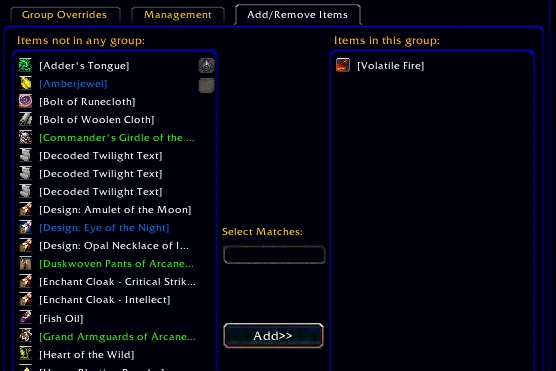
Now go to the Add/remove item tab and seleclet Volatile Fire and then click add .


Finally go back to the AH and Select the top button in the Tradeskill Master tab and it will post the item.


Then Just repeat this for as many items as you want

Zoxy


If you want to Read a different section or go back to the Guide Directory Click on the Links Below

Section 1 Auctioning module
Section 2 The Crafting Module
Section 3 Auto Mail module
Tips and Tricks for Using TSM 

Consortium Competition - Who has the Best post


Every Month over at The Consortium Forums There is a monthly competition where you can enter forum Posts and Blog Posts .

Here are the three I have submitted

First entry.
Second entry

Third entry. 


So go over have a read of all the Posts And Vote for the Best one

Many Thanks

Zoxy

Monday, 17 January 2011

TradeSkillMaster - Addon Guide Compilation


What Is Trade Skill Master ? 

TradeSkillMaster is a MODULE BASED system to help both NEW Auctioneers and the MOST ELITE AUCTION GOBLINS manage everything related to the Auction House! Our goal is to work hand-in-hand with our community to develop an all-inclusive suite of modules that, when used together, follows our users through every single auction and crafting related function, making them as much gold in as automated of an environment as possible while still following blizz Terms of Service very closely.

Here is my guide for How to set up and use TSM , it is currently in Beta so there maybe a couple of bugs


Section 1 Auctioning module
- Setting up Groups
- AH Posting ,Cancelling and Shopping


Section 2 The Crafting Module
- General Settings
- Crafting Settings
- The Craft Queue
- Profession Group Setup Easy mode 

Section 3 Auto Mail module
- Auto Mail

Tips and Tricks for Using TSM 
Dealfinder Flipping Automation

Other Useful Links 
Trade Skill Master FAQ 
Bug Reporting  Click Here 
Curse Download location

Other Blog Posts
TSM First impressions  - Auction House Raids

Have I missed out a Guide or Is there something you want to Know about ?

Zoxy

TradeSkillMaster - Guide Auto Maili

Guide Auto Mail

Step 1 - Setting Up Auto mailing
Click the mail Icon on the Right had side of the mail TSM Page 

Then where it says Player name write in the name of the Character ( make sure its Spelt Correctly) that you want to be receiving the mail.


 Then Over in the Options Select the Character you want to Setup .


Step 2  - Adding the Items 
This is Just like adding items To the AH groups for Selling , If the item is in your bags then you can just click on Add and  it will move the item over .

You also can add a item group over to be selected to a character by clicking the Add button .

To Remove a item or Group from the list just click on remove


Step 3 Sending 
Once you are ready to send just open the mail box and Click the Red bar at the Top and it will start sending the mails out to your chosen Characters .


Zoxy

If you want to Read a different section or go back to the Guide Directory Click on the Links Below


Section 1 Auctioning module
Section 2 The Crafting Module
Section 3 Auto Mail module
Tips and Tricks for Using TSM 

TradeSkillMaster - Module 2 Crafting - Crafting Settings

 Module 2 Crafting - Crafting Setup 
Before you start using the Crafting window you need to Set up what item you can craft and some additional Settings .

Step 1 - first you need to go into your profession and then Select which items you want to add to your crafting window , the easiest option is to enable all Crafts and  I would recommend it the first time that you setup and look over what is profitable.

If you don't want a item to appear in your Crafting window leave the Check Box unchecked as in the image Below


Step 2 Additional Item Settings - 
For each items it gives you the following options :

TSM _Auctioning Group to add too  - This allows you to add the item to any of your existing Groups
Name of New Group to add item - This allows you to create a new Group
Override Max restock- This will override the Maximum restock level for this item
Override Min Restock  -This will override the Minimum Restock level for this item
Ignore Seen Count Filter - Will ignore the Seen count for this item
Don't Queue this item -If you don't want this item to be queued( wont make item)

I go into more detail into the what the Settings mean in the general settings post 

You will need to go through Each item and Item Group to set up them all up .


Step 3 - Material Costs 
For each of the Crafts there is a page after the Item groups that allows you to set the Prices of  the Base Material Costs , if you want to change any of the prices just check the box and edit the price .

Zoxy


If you want to Read a different section or go back to the Guide Directory Click on the Links Below

Section 1 Auctioning module
Section 2 The Crafting Module
Section 3 Auto Mail module
Tips and Tricks for Using TSM 

TradeSkillMaster - Module 2 Crafting - Craft Queue

 Module 2Crafting - Craft Queue 
 The Above image is of the Crafting window in TSM to open it just click the Button on top of the normal Crafting window .

Once open you will then be able to select from the list what items you want to look at below is the information that will be displayed when you .


  • Name - This is the Item name that can be made 
  • AH/Bags/Bank/Alts - This shows how many of that item you have and its location
  • Market Value - Current Market Value ( Sale Price ) 
  • Profit - How much profit is made by making the item 


How to use the Restock and On hand Queue 
Restock Queue If you have followed the previous Sections of the Guide then you have already setup your Setting for the Restock Queue .To use the queue it very simple Just press the Restock queue button and the list will then Populate .This is the same for the On-Hand Queue But will only use items in your current Bags .


Once you have Populated the Queue it will appear in a List like this , i have Set my restock amount at 3 items the colours have different meaning 
Green - Have items on hand to make 
Yellow - Have mats on a alt 
Red - Don't have mats 


 This will also then give you a break down of the Mats that are required to make the items working with the same colour coding

Green - Have items on hand to make 
Yellow - Have mats on a alt 
Red - Don't have mats 


Then once you are ready to craft just press the Craft next button this will then process your list of items that you can make .

For any items that you didn't have they will appear in the Queue in the AH panel under Buy Crafting Mats .So please Check out this section of the Guide if you haven't read it yet.

Zoxy   

If you want to Read a different section or go back to the Guide Directory Click on the Links Below

Section 1 Auctioning module
Section 2 The Crafting Module
Section 3 Auto Mail module
Tips and Tricks for Using TSM 

TradeSkillMaster - Module 2 Crafting - General Settings


Module 2 Crafting General Settings
To Access the General Settings just press the Button that look liek a Gem on the Right hand side of the TSM main window .This will then give you a option 3 Tabs Data, Craft management and Profiles.

Step 1 Price Settings 
Include Vellums in Costs - This is simple check box that allows you to include the cost when working out the profit 
Get Mat Prices and Get Craft Prices from this allows you to set your source for where you want the Material prices to come from Auctioneer -Appraiser,Auctioneer - Market Value,Auctioneer ,Minimum Buyout,AuctionDB Market Value , AuctionDB - Minimum Buyout or Manual Entry 

Profit Deduction - This slider allowed you to set a percentage for profit Deduction if you set at 5% it would cover the AH Fees when calculating profit 

Step 2 Inventory Settings 
This Box allows you to set up the Inventory setting choosing what Guilds and alts you can access stock from

Addon to use for Alt Data - you can choose Gathering ( TSM Built in ) or Datastore

Characters to Include and Guilds to include - Both have drop down boxes that allow you to tick which characters and Guild you want to have included for Mats for the Crating queue


Craft Management Window  
Step 3 General 
The First option is the Frame Scale so you can increase or Decrease the Size of the Crafting window 

Double Click Queue - This sets the number of item you want to add when using the Crafting window


Step 4 Restock Queue Settings 
Include Items on AH when Restocking - If this tick box is checked then When you are restocking you will include items already listed on the AH in your Stock

Min Restock Quantity - Item  that will be added to the restock Quantity EG if you wanted to make items in batches then having the number 10 here would only add 10 of the item when you need 10 rather then adding them once at a time.

Max Restock Quantity - This sets the maximum number of items to be in your craft queue for any one item type 
Minimum Profit ( in %) or (in gold)

Filter out Items with Low Seen Count - This allows you to ignore items with Low Seen count and Select the source Either TSM_AuctionDB or Auctioneer and then Set a seen count filter . 


Zoxy 

If you want to Read a different section or go back to the Guide Directory Click on the Links Below

Section 1 Auctioning module
Section 2 The Crafting Module
Section 3 Auto Mail module
Tips and Tricks for Using TSM 

TradeSkillMaster - Guide Module 1 Auctioning - Buying At the AH

Welcome to Part 2 of the TSM guide

I will now Explain which each of the buttons do
-Auctioning Post
-Auctioning Cancel
-Auctioning Cancel All
-Auctioning Status/config
-AuctionDB Run Scan
-Shopping General Buying
-Shopping Milling/Disenchanting.Prospecting
-Shopping Crafting Mats!
-Shopping Dealfinder


Auctioning Post :
This is the Main button that you will be using to sell items in your groups that have been set up previously.

Before the item goes live it will display the information Displayed in the image , at this stage you can choose to Post Auction ,Skip Item or Stop Posting .


Auctioning Cancel :
When this button is pressed it does a scan of the AH and will then produce a list of all the items that you have been under cut on .

It will then give you the option to cancel Auction Skip Item or Stop Cancelling 


Auctioning Cancel All :
Cancel all give you the option to cancel  Actions in Bulk Based on a couple of different Factors

Items matching : For example you could type 'Glyph of ' and it would select all Glyphs to canceled .


Cancel All Filter :You can filter by a Specific grup or By time left by typing into the Box. IT would then select all items with that Criteria to be cancelled.


Auctioning Status/config
This runs a scan that Helps to Identify what items can be brought out to raise the price of he the groups you are managing . To access this once the scan has completed a Log Button will appear next to the TSM button click that and that is where the information will be .

The Config Button will take you to the Group Config page


AuctionDB Run Scan


There are two option here the first is the Get All Scan and the second is a smaller scan just focusing on professions.

The Get all will scan all items on the AH when the Profession Scan will just can the Trade goods and items made by and needed for that profession


Shopping General Buying :
This is simply a search of the AH , the item must be spelled exact or it wont be found. You are able to input the number you want and also the maximum price

This will then produce the Result of the lowest priced item that you have searched for


Shopping Milling/Disenchanting.Prospecting

In this Tab it allows you to search for items such as Herbs to mill , Items to DE and also and gems to Cut .

So for Milling as the example , You choose form the drop down and then it will Search all the Herbs in that produce it and then Give you the option to buy them .
It will also Record the amount of inks you have brought and the Average cost per ink.


Shopping Crafting Mats!
This is designed to work with the Crafting Queue Which i will go into Further detail in the next module


From the list produced from the items you have queued in TSM Crafting module this will individually go through each item and select the cheapest on  the AH for you .

You have the options to Buy and Skip each item .


Shopping Dealfinder
This is the Snatch List - This allows you to setup a list of items that you want to quickly scan for .The Dealfinder allows you to set the mexium price when you add the item into the Deal finder .

Adding a item into Dealfinder _
Select the Configure Dealfinder List .You can then Add the item by either the Shift Clicking on a item or adding the item numberID ( this can be found on wow head)

When you have added the Item you then need to set the maximum price for the item . Then Select Add item and it will be added to the List .

Next run the DealFinder Scan and see what appears ,It will scan the Items in the AH window next to it so make sure you have it on browse so you can see what it is scanning .

Hope that makes it Clear on how to use the AH Functions of TSM
Let em know if you have any questions

Zoxy


If you want to Read a different section or go back to the Guide Directory Click on the Links Below

Section 1 Auctioning module
Section 2 The Crafting Module
Section 3 Auto Mail module
Tips and Tricks for Using TSM